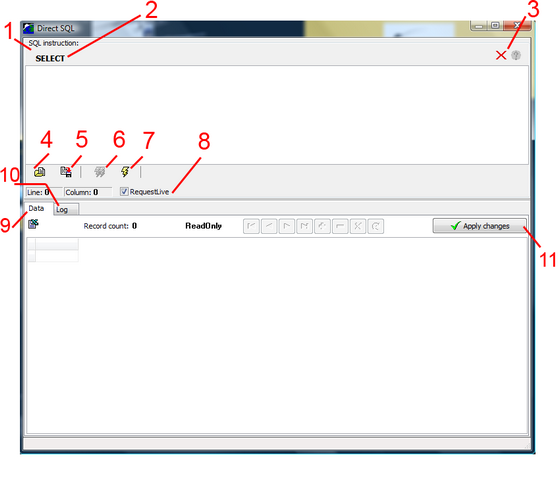
The Direct SQL utility gives a direct access to the database. Any kind of data selection and updates can be done with this module using SQL (Structured Query Language) statements complying with the SQL92 standard and, more specifically, with the firebird SQL help manual (Firebird SQL manual or Firebird documentation index)
WARNING: THE DIRECT SQL UTILITY MUST BE USED WITH CAUTION AND A PERFECT KNOWLEDGE OF DATA UPDATE CONSEQUENCES. POSTED MODIFICATIONS OR UPDATE / ALTER SQL SCRIPTS CAN PERMANENTLY DAMAGE THE DATABASE.
1- SQL instruction frame
2- The first instruction word "SELECT" is preset by default. With this first word in the SQL instruction, the user can only select the data from the database and cannot use an SQL script to update the data (instruction starting with UPDATE, ALTER). This first word can be removed using the red cross (see item 3)
3- Red cross: Click on it to remove the "SELECT" word from the SQL instruction and execute update scripts or DDL modification scripts (password required)
4- Load an SQL script from an external file (.sql, .txt)
5- Save the SQL instruction currently displayed in frame 1 to an external file
6- Execute without data pointer: Execute the SQL instruction currently displayed in frame 1 without waiting for a data cursor (SQL instruction which does not returns a data cursor like an UPDATE statement)
7- Execute and display data: Execute the SQL instruction currently displayed in frame 1 and display the data in frame 9 (SQL instruction returning data like a SELECT statement)
8- Before clicking the button n°7 (execute and display), you can specify if the selected data should be read only (Request live unchecked) or have a write permission (Request live checked)
9- Data display: this section is filled with the selected data when the button n°7 is pressed and the SQL instruction has been executed without error (data can be exported using the XLS button)
10- Log: this section is displayed when the execution of the SQL instruction resulted in an error (displays the error message) or after execution of an SQL instruction that does not return data (displays the executed instruction and its result (error message or ok))
11- If a data displayed in section 9 has been modified, click on this button to send your changes to the server.