This section explains how to import an aircraft into AMS. You can import new and used aircraft using IMPORT /EXPORT module
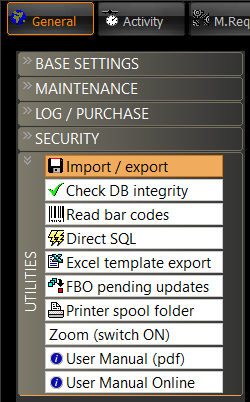
To open this module, go to the main AMS window / General / Settings / Utilities / Import-Export
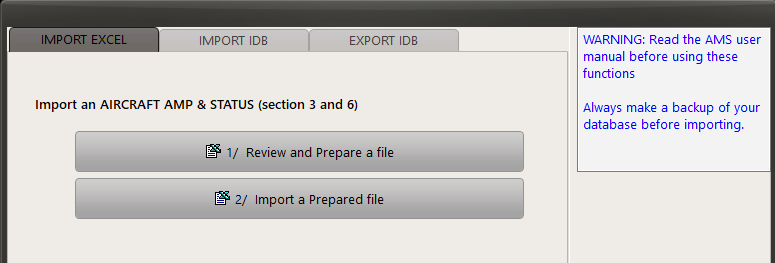
The import process requires an external MS Excel file used to review the aircraft status prior to import. If you do not have this sample file, request it from our Customer Services. The file name is @IMPORT-AIRCRAFT-01-.xlsx.
Import process:
1/ Preliminary steps:
It is highly recommended to:
- Import a file into a dummy database
- Review the imported data
- Approve the data import
- Run the import into the production database
Create the aircraft (Activity module / Aircraft) into the database , as well as the associated aircraft protocol if this is the first aircraft for this protocol. Note the Aircraft ID# as this will be required during the next step
2/ Review and Prepare the file:
This action will review the MS Excel file and record the result of this review in the same file, from column BW and following (this reference may change in future versions)
Open the file and load the data you want to import. Do not forget to enter the general settings data (Aircraft ID#, Section 3 and Section 6 MR Types, ....) as displayed on the first 7 rows.
This step does not import any data into AMS. You can use this function, update the import file and run this function again without changing any data recorded in AMS
The columns "PREPARATION STATUS" and "ERROR TEXT" show the readiness of data to be imported. When all lines shows "OK" in column "PREPARATION STATUS", this means that AMS found the data to be ready for import (note that it might be a WARNING message in column "ERROR TEXT" to advise you that a line is ready for import but a special situation exists)
During this review, the columns "CREATED MR" and "CREATED WO#" will display "1" a the respective MR / WO will be created (the reference is not defined as the MR / WO was not actually created)
3/ Import a Prepared file
This function will do exactly the same as step /1/, and actually import data into AMS.
Import file specifications:
This file contains detailed information about each column and field. Read it carefully before importing any data.
The header section (lines 1 to 7) contains general information, such as:
- AMS Aircraft ID#: This is the identifier of the aircraft in AMS (the aircraft must be created in AMS to import its status)
- Create MR when not exists (Y/N): If this not the first aircraft of this type and you want to be sure that AMS will not create the MRs if they are not pre-existing, set this value to "N"
- Create MR as amendment: New MR are created as an amendment to the Protocol (AMP). If this function is activated (Y), last performed cannot be imported as a task cannot be completed while it is not yet approved
- SPECIAL INTERVAL LITERALS: Use this section if your data are imported from an aircraft MPD using letter codes to define check intervals instead of actual FH / FC / Months
- New Aircraft: When status is OPEN and no due FH/FC/Date is specified -> consider the aircraft as new
Special fields values:
Threshold/Interval: format [T: X FH OR X LD OR X MO/DY/YE I: X FH OR X LD OR X MO/DY/YE]
Valid units are: FH (Flight Hours), FL (Flight Cycles), FC (Flight Cycles), LD (Flight Cycles), WY (Week), MO (Month), YE (Year)
example: "2 A" ("A" being defined as a "SPECIAL INTERVAL LITERAL" in the file header section)
example: "4000 FH"
example: "I: 3 MO OR I: 600 LD"
example: "T:8 YE I: 4YE"
Interval: This field is using the same format as "Threshold/Interval"
If a repeat interval is specified, it overrides the interval of the "Threshold/Interval" column
Special Interval Literals: Use these fields to define Letters (Letter check) which will be converted into an interval (example: A or C). Do not mix interval literals with other interval (for example, "4 A OR 1000 FH" is prohibited). When a special interval literal is used, an interval using this literal must include a space just before the literal (for example, if "C" is defined as a special interval literal, "C" is not a valid interval whereas "1 C" is valid)
Nb Men: Number of men required and their specialty. Format: [X SPC] where X is an integer value and SPC is the specialty as defined in your general settings. X defaults to 1 is SPC is omitted
must contain as many entries as [Mh] column.
New MR UPDATE SQL: Use this optional column to record additional SQL statement to be executed if the MR is created (table TTASK). Valid example:
ISSUEDBY = 'AIRBUS', MRPROCESS='O/C', PACKAGED='N'
Section 6 (Airframe Tasks)
If "Task Type" is not specified (or is a section 6 type) and no "Equipment PNs" is empty, the task is treated as a section 6 (airframe task effective by maintenance protocol)
Section 3 (Fitted Equipments)
If "Task Type" is not specified (or is a section 3 type) and "Equipment PNs" is not empty, the task is treated as a section 3 (Equipment task effective by maintenance protocol and P/N)
Last Done data is not used for section 3 tasks (Fitted Equipment positions)
AD, SB, EO and other MR types
If the task is not a section 3 nor a section 6, the "Task Type" column indicates the type
Equipment Tasks must be listed after the Fitted Equipment section (a task cannot be imported if the concerned equipment is not fitted)
Equipment Tasks: Equipment installation section (installation date, certificate, TSI, TSO, ....) are not considered (the equipment must be previously installed)
Equipment Tasks: Last Done data is not used unless M.LEVEL = NONE (the task does not require the component replacement)