01/ RUN A XLS TEMPLATE:
To execute an existing MS Excel template report, proceed as follows:
- Open AMS an click on the option button: 
- Select UTILITIES / Excel Template export
The system will ask you to select the file you want to execute.
02/ PREPARATION
In order to extract AMS data and produce XLS reports, the logged user needs the following rights to be granted in the Security/User account module:
-Direct SQL (read results); and
-Export to Excel
Verify that your "AMS Client" installation includes the desired XSL Templates in the directory:
<AMS Client installation Directory>\Xlstemplates\

03/ REPORTING MODES
MS Excel reporting is available in 4 modes:
Built-in Xls template (Mode 1)
Mode 1 reports are built into AMS. AMS prepare the data (dataset) and copy these data into the MS Xls Template based on its file name (located in the Xlstemplate folder). The report is produced when the user click on a specific button, or select a specific menu in AMS. An example is the component removal / installation report on the Work-package module.
The number of built in reports will increase over time in AMS
Mode 1 xls files can be recognized by having a <raw_data> tab, but no <sql> tab.
Mode 1 files are designed to be generated by AMS when the user select specific buttons or menu options (for example "Human Resources / All Job Logs")
Excel Exports (Mode 2)
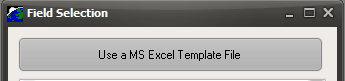
The MS Xls export function is present in all AMS modules by pressing this button  . AMS produces a dataset and create a new Excel file to populate it. The user can choose to populate the data to an unformatted excel file, or press the "Use a MS Excel Template" button to use a formatted excel file:
Mode 2 files are the same as mode 1 files (<raw_data> tab, but no <sql> tab). The only difference is that a mode 2 file is not called directly by AMS, the user need to select it when needed.
Query Xls templates (Mode 3)
Query Xls templates are used to execute a SQL query with user defined parameters and parse data into a formatted excel file.
Mode 3 files can be executed from the <Utility> section / Direct SQL.
Mode 3 files can be recognized with their <raw_data> tab and their <sql> tab.
Multi-queries Xls template (Mode 4)
These files are used to execute multiple SQL queries, and parse the resulting data into the same excel tab
Mode 4 files can be executed by AMS (example Work Package SR02 report) or using <Utility> section / Direct SQL
04/ CUSTOMIZING REPORTS
FOREWORDS
It is important not to mix the XLS Templates delivered with AMS <Xlstemplates> and your own customized XLS templates to prevent overwriting your customized reports when AMS is upgraded. Save your XLS Templates into the directory <AMS installation directory>\AMS_Client\XlsTemplatesCustom\ or <My documents>\MyAMS_XLStemplates\. You can customize the XLS Templates delivered in the directory <Xlstemplates> and save the customized files into your private XLS template directory.
When a XLS Template report is ran by AMS, AMS will finalize the MS Excel output by removing all construction elements (the “sql” tab, the “raw_data” tab, paste the output values in the first worksheet instead of the calculation formula). This produces a worksheet which is directly usable by the end user without any construction data. When you design your own template, you may need these construction data in order to make your changes based on the raw_data worksheet. To skip the finalisation (keep the raw data and sql worksheet), enter the key word nofinalisation in the cell A1 of the fisrt worksheet (effective to mode 1 and 2 files).
Mode 1: This mode does not require extended customization except replacing the AMS logo by your company logo (read the forewords above about making a private copy). You may also push the customization further as per the mode 2 and 3 bellow.
With this mode, AMS prepares data (the dataset) and copy it to the MS Excel worksheet named <raw_data> (usually the second tab). A copy of these data, eventually modified by calculation using MS Excel formula, will then be displayed using another tab (usually the first tab) using customer defined colors, column titles, size, fonts and so on.
Mode 2: As exposed above, mode 2 files are the same as mode 1 except they are not called directly by AMS. The user can select the XLS template to be used (a file selection window will be displayed to select the XLS template). The file is designed to work with the module it was designed from.
To create a customized XLS template, proceed as follows:
1/ Extract the desired data to MS Excel without using a template 
2/ Rename the tab from <AMS> to <raw_data> and move it to the second position
3/ Use the first tab to create your customized report by populating the data of the <raw_data> tab. The MS Excel formula will look like this example: 
4/ When you are satisfied with your report, delete the values contained in the <raw_data> tab cells and record your file as a MS Excel template (*.xltx). Note: The data of the <raw_data> tab need to be deleted because AMS will not delete the previous content before recording the new data. It is preferable (but not mandatory) to keep the column titles. If the column titles are recorded, AMS will try to match his data with the column headers: This is ensuring that all data remain presented in the same order and will raise an error in case the data cannot be matched (for example when the user attempt to use a wrong XLS template for the selected data)
You can now use the button export your data to the newly created template.
Mode 3: This mode includes all functionality of mode 1 and 2, and uses an embedded MS Excel Tab to record the SQL instruction with user defined parameters.
To create a Query Xls template, proceed as follows:
1/ Create a new MS Excel file, name the second tab (worksheet) <raw_data>, name the third tab <sql>
2/ Record the query parameters and SQL instruction in cell (1,1) (the top left cell) using the taxonomy exposed bellow
3/ Run the report a first time to get AMS to fill a first sample of data in the tab <raw_data>. On AMS Main page, go to UTILITIES / Excel template export: 
4/ Modify the report tab (first tab) and the <raw_data> tab as required (as per Mode 2 instructions) and record your new report as a MS XLS Template.
SQL Instruction and parameters schema: The instructions recorded in the <sql> tab must comply with the following schema:
In the following schema, characters between the symbols <> denotes a parameter to be set as per the “explanation” column
INSTRUCTION |
EXPLANATION |
[param1] datatype=<datatype> displayname=<displayname> defaultvalue=<defaultvalue>
[sql] SELECT ……
|
This is the first parameter section (the number of parameters is illumined) <datatype> must be “integer” or “string” or “datetime” <displayname> must be set to the string to be displayed in AMS Optional: this line can be omitted; or can be used to set a default value Enter another section for [param1], [param2], and so on. The [sql] tag indicates that the SQL instruction follows In the SQL instruction, use the parameters previously defined using “:param1”, “:param2”, .., where the parameters should be used. |
Example of a valid instruction:
[param1]
datatype=integer
displayname=Work Package ID
[sql]
SELECT T1.*, T2.* FROM
(SELECT LEFT(LOCFROMREFALPHA,2) AS ATA, MOVGROUPREF, PARTLABEL, LOCFROMREFALPHA, PN as PNOFF, SN as SNOFF, FORWO as WO, REF3STR as REASONTXT FROM TMOVITEM
WHERE (MOVTYPEID=50) AND (WORKPACKID = :param1)) T1
JOIN
(SELECT MOVGROUPREF, PARTLABEL, LOCTOREFALPHA, PN as PNON, SN as SNON, AGECERTREF AS CERTREF, AGECERTDATE AS CERTDATE, AGESETTSO AS TSO, AGESETCSO AS CSO, AGESETTSN AS TSN, AGESETCSN AS CSN, FORWO as WO FROM TMOVITEM
WHERE (MOVTYPEID=51) AND (WORKPACKID = :param1)) T2
ON T2.MOVGROUPREF=T1.MOVGROUPREF;
Execution
When AMS will execute the XLS Template using a <sql> tab, a parameter window will open to let the user enter the desired parameters.
Mode 4:
A multi-query Xls template can contain as many tab (worksheet) as needed, but only those worksheet complying with the following rules will be executed by AMS (Note that it also means that you can add other tabs to the excel file and use the data calculated in other tabs):
Cell A:1 contains the SQL instruction and SQL parameters. The syntax is the same as mode 3. Note: All SQL parameters needed to run SQL queries of all tabs must be listed in the first tab (reading from left to right). Parameters exposed in the second and following tabs will be ignored
Line 1 (B1:HH1) is reserved (do not write date into these cells or it might be overwritten by AMS)
Cell C1 is used by AMS to record the date of report execution
Cell D1 is used by AMS to record the 1st parameter
Cell E1 is used by AMS to record the 2nd parameter
Cell F1 and on are used by AMS to record the next parameters
Line 9 contains the field names (This line will be deleted from the final output)
Lines 2 to 8 can be used to record any data. Line 8 should normally contain the column header
WP-SREPORT02 Xls report is a good example of Mode 4 file