The Document Manager is a powerful tool available everywhere in AMS :

The Document Manager is used to attach any kind of file with a particular information stored in AMS (Work Order, aircraft, component, etc)
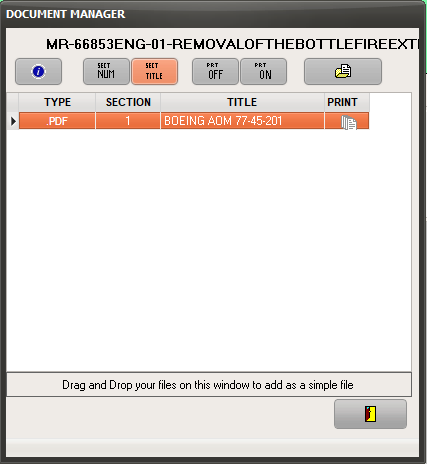
Files attached with the Document Manager are sent to the AMS Server and stored with the database (but not inside of the database). Any type of file can be attached (.doc, .pdf, .bmp, .jpg, .rtf, etc) but a PDF format (unprotected) is necessary to allow the file to be collated and assembled with the document the file is attached to, using the "Auto Print" functionality. For example, if you attach a pdf file with a Work Order (WO) and if you activate the "auto print" option (the PRINT column in the above picture), then the PDF document will print together with the concerned WO.
The Document Manager is also able to take control of any scanner installed to directly digitize and attach documents, provided the scanner complies with the TWAIN standard.
Using Links:
Instead of attaching the file directly, you can enter a file link so that the current copy of the file is used every time the link is executed.
The link is executed on the client computer, which means that the link must be valid on every computer (avoid using locally mapped drive letters or relative path)
An example of full network path and file name is
Local network target file:
\\SERVER_MS\netdoculauncher.exe
URL target:
http://www.megadomain.com/doc1278b.pdf
For the target file to print with the associated WO, select a .pdf file located on the local network:
\\MNT\DOCS\A320\AMM\27-12-00-01.pdf
Note: it is preferable to use the server name (MNT in this example) rather than an IP address because the IP address may change in the event of a network upgrade.
Using Links to launch different Task Cards from the same MR:
A MR can be effective to an entire fleet but the task card to be printed is different from an aircraft to the other. To handle this you can organize your manuals and aircraft publication by MSN, by aircraft type or by fleet, and use the following keywords in the target file name:
[ACMSN] will be replaced by the aircraft MSN
[ACTYPEEXACT] will be replaced by the aircraft "Exact Type" (as opposed to "Type Series")
[FLEETNAME] will be replaced by the aircraft fleet name
Examples:
\\MNT\DOCS\A320\AMM\[ACMSN]\27-12-00-01.pdf will be resolved to :
\\MNT\DOCS\A320\AMM\01245\27-12-00-01.pdf for the aircraft having MSN 01245