001-FORWORDS
This procedure exposes how to use the bar code module to record each individual activity and use the real time work monitoring of AMS
002-GENERAL REQUIREMENTS
Before the first utilization of bare code functionality, set your preferences in the General Settings (Maintenance / Maintenance Requirements)
In order to use these functions, an identification card must be provided to each individual. This card is used by AMS to identify the individual using the barcode.
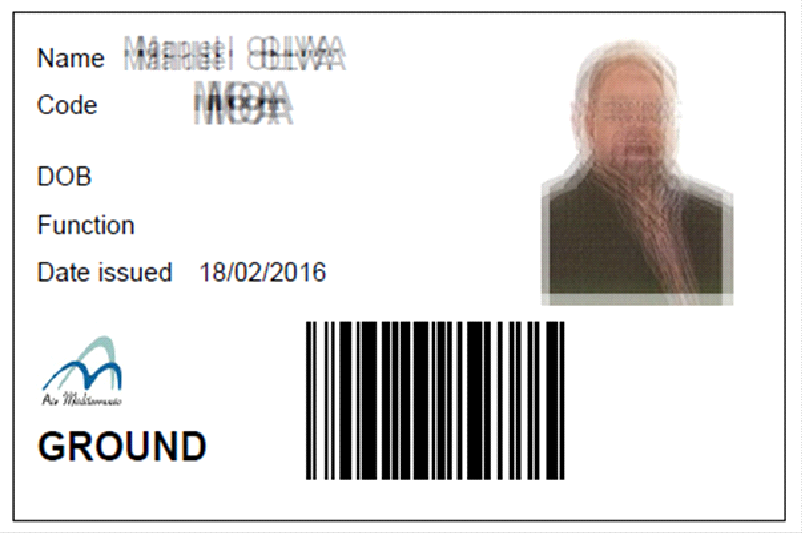
To print this card, go to HUMAN RESOURCES / GROUND then click on the ID CARD button on each individual profile.
This will produce a credit card format identification card showing all relevant data (Name, Function, Validity date, Photo, Logo of the company) together with the code bar.
If your computer is equipped with a label printer capable of printing CC format labels, the pdf file produced by this function will be CC. If not, the output file will be in A4 format showing a Credit Card rectangle on the top left corner.
You may use various devices to print and distribute your ID cards. For small quantities it can be done with a simple A4 printer by cutting the output sheet and stick it to a blank credit card (with or without laminated plastic cover). For larger production, we recommend the use of dedicated card printers (Zebra is the leading brand in this field)
003-01: START Working on a Work Order / Task Card
1/ Activate to bar code reader module by clicking on this button  (located at the bottom of the AMS window).
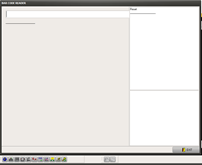
2/ Scan your ID Card
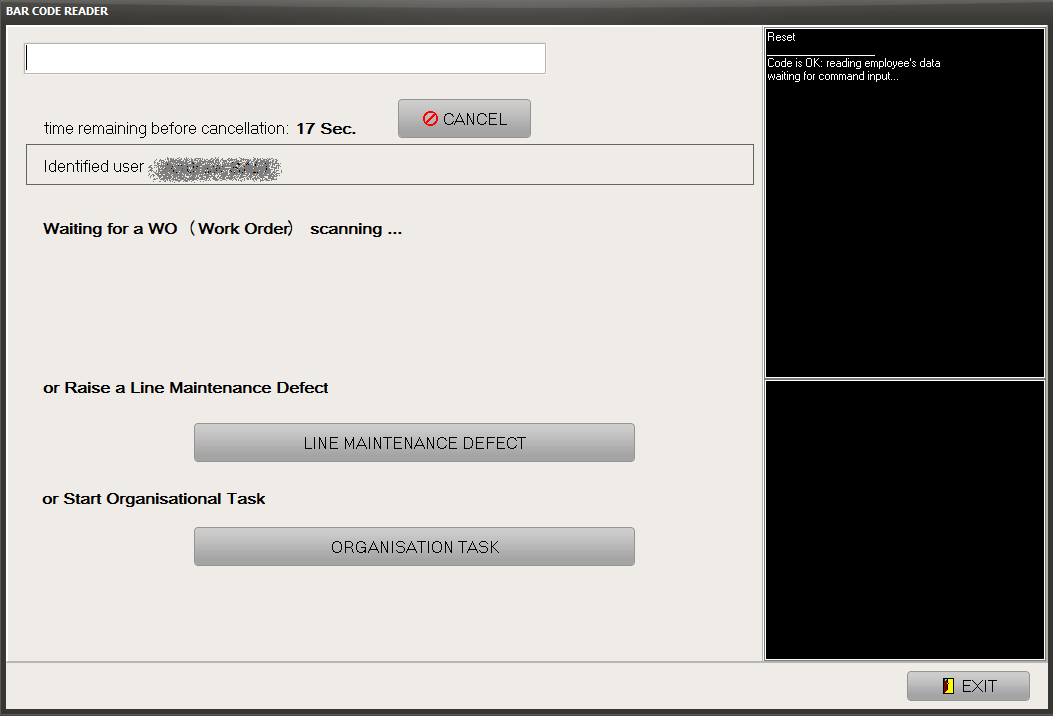
This window allow you to perform 3 different actions:
•Scan the bar code of a WO to start working on it;
•Click on the LINE MAINTENANCE DEFECT button to record a line maintenance defect
Click on the ORGANISATION TASK button to start a new administrative / organisational task
3/ Scan the bar code of the WO
4/ Click on the “START JOB” button
003-02: RAISE a DEFECT on the Work Order you started working on
1/ Activate to bar code reader module by clicking on this button  (located at the bottom of the AMS window).
2/ Scan your ID Card
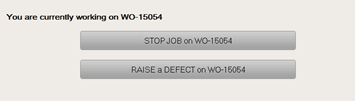
3/ Click on the “RAISE a DEFECT” button
4/ Enter the description of the defect with all technical details
Record the list of materials required to rectify the defect
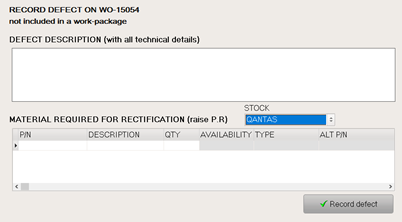
5/ Click on the “Record defect” button
003-03: STOP Working on a Work Order / Task Card
1/ Activate to bar code reader module by clicking on this button  (located at the bottom of the AMS window).
2/ Scan your ID Card
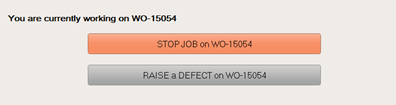
3/ Click on the “STOP JOB” button
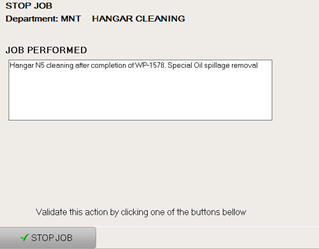
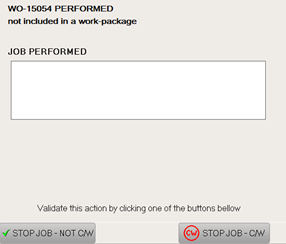
4/ Enter the description of the Job Performed, then:
If you completed the WO and you are signing off as LAME, click on the “STOP JOB – C/W” button (Complied With)
If you stop working on this WO but the you are not signing it off, click on the “STOP JOB – NOT C/W” button.
003-05: START an Administrative / Organizational task
1/ Activate to bar code reader module by clicking on this button  (located at the bottom of the AMS window).
2/ Scan your ID Card
This window allow you to perform 3 different actions:
•Scan the bar code of a WO to start working on it;
•Click on the LINE MAINTENANCE DEFECT button to record a line maintenance defect
Click on the ORGANISATION TASK button to start a new administrative / organisational task
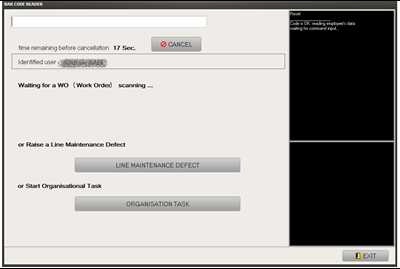
3/ Press the “ORGANISATION TASK” button and select the appropriate job category
4/ Enter a brief description of the job and press the “START JOB” button
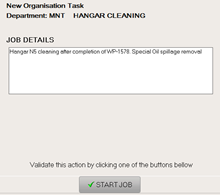
003-06: STOP an Administrative / Organizational task
1/ Activate to bar code reader module by clicking on this button  (located at the bottom of the AMS window).
2/ Scan your ID Card
3/ Click on the “STOP JOB” button under the Org Task section
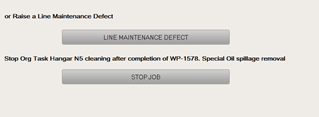
4/ Enter a brief description of the task completed and press the “STOP JOB” button