This procedure explains how to issue a material from store to the workplace using the assistant.
Starting AMS
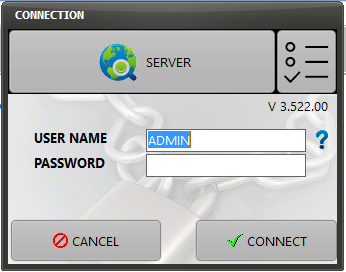
Double click on the AMS shortcut located on the computer desktop.

Login:
|
Use the User Name and Password assigned by your AMS administrator
Then click on the CONNECT button |
|
|
1.Using the assistant
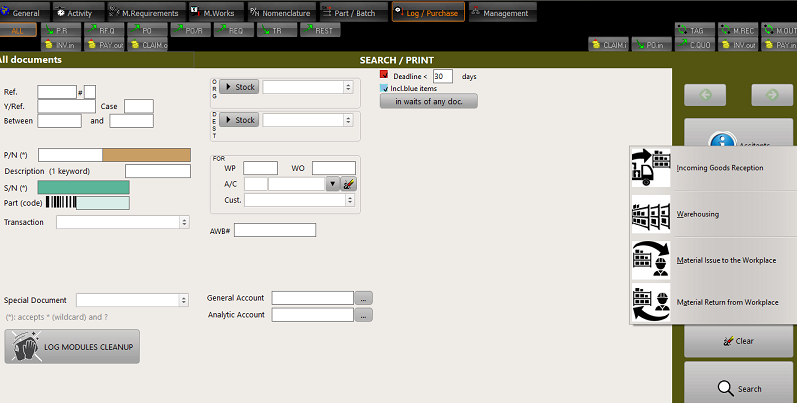
Select (left click) the “Log / Purchase” module and click on “Assistants” / “Material Issue to the Workplace”, as show on FIGURE 2.001.
FIGURE 2.001
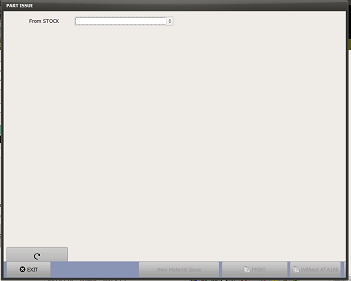
The Material Issue assistant is displayed. This window is showing a sequential series of fields to be entered. Each field will appear on the screen as the previous fields have been entered.
When you do not have the information to enter a field, press the “Enter” key while the concerned field is focused to move to the next step when possible (like in the below example with the field WO):
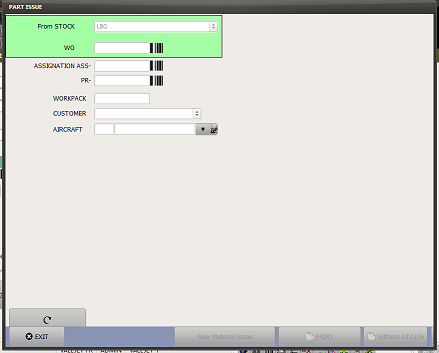
Continue to enter as much fields as the information is available. Some fields are mandatory and AMS will raise a message if the value of a specific field is required to validate a material issue.
When all necessary data have been entered, a button “ADD” will be displayed at the bottom of the window as shown:
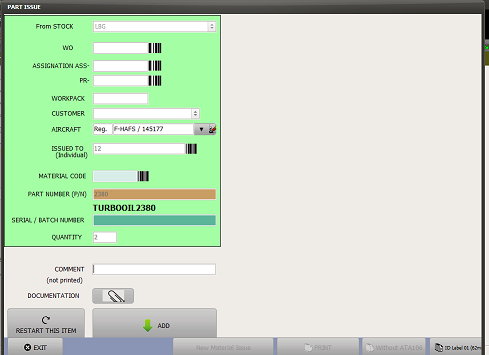
Click of the “ADD” button
The left section of the window (the data entering section) is now disabled and the right section (the list of material issued) is displayed and is showing the list of materials to be physically issued.
Depending on the next desired action, you may:
•Continue to enter the next item being issued to the same person, and for the same work;
•Click on the “PRINT” button to print a copy of this material issue and get the person receiving the material to sign the remittance form;
•Click on the “New Material Issue for same Customer / Aircraft,
•Click on the “New Material Issue” (for a different Customer / Aircraft)