This procedure explains how to record material returns from the workplace using the assistant. For the general procedure without using the assistant, refer to How to receive a material into stock?
When a material has been issue to the workplace and finally become unnecessary, the material is returned to the store in accordance with the following procedure:
1/ Open AMS and log in
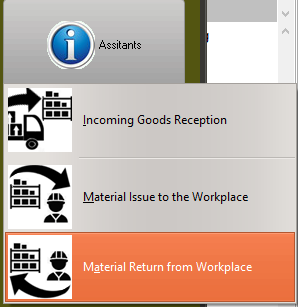
2/ Select the module Log/Purchase, then Assistant / Material Return from Workplace:

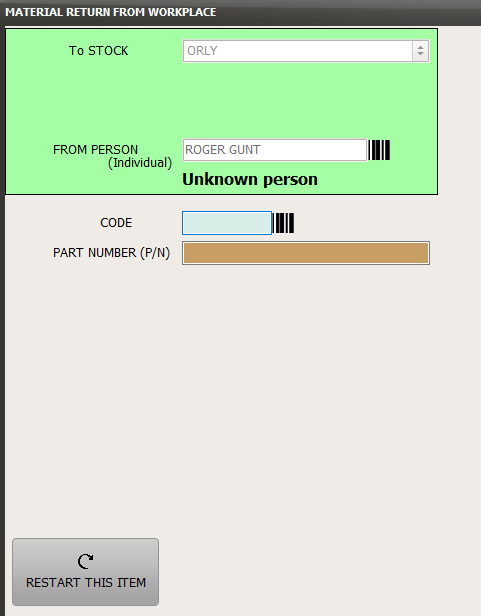
3/ The assistant windows opens and displays each field in sequential order
Enter each field and press "Enter" to move to the next field
Note 1: When you do not know the value of a field and when it is permitted to let this field blank, press the "Enter" key to move to the next field. For example, in the bellow screen shot, you might not know the material code for the material you are receiving. In this case you can move to the P/N field. Once the P/N field will be entered, AMS will invite you to enter the S/N or Batch number
Note 2: Where a bar code icon is displayed on the right side of a field, you can use your bar code reader to scan the code
Note 3: Enter the individual code as recorded in AMS in the field "FROM PERSON" so that AMS can identify the individual. If you do not know the code (as per the bellow example), you can enter the full name of the individual but AMS will be unable to establish a link between this name and the concerned person.
4/ When the entry is complete, press the ADD button to add this row item to your M.REC
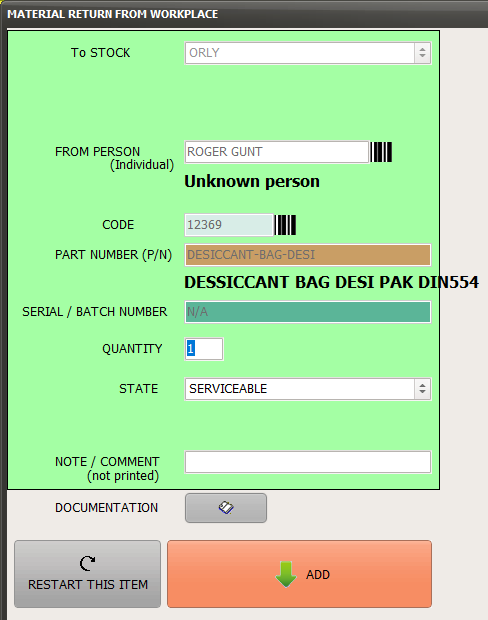
Note 4: The "DOCUMENTATION" button can be used to record the release documentation or any other file (like photos)
5/ To receive other goods, continue to enter the other row items (steps 3 to 4)
6/ Once all materials have been received, click "PRINT M.REC" to produce a M.REC report to be signed by the person remitting the goods and the person receiving these goods into the store. Click on the "ID Label 01" to issue the identification labels and bar codes to be displayed on the top of the material documents.