This article shows how to raise a PR and send a Purchase Order (PO) in the context of a Maintenance Watch office
Depending on the procedures effective in your organization, you might need to
001A (option A) Record the defect first, as per the previous article. In this case you simply need to click on the "P.R" button displayed on the WO and select "Create a free P.R"
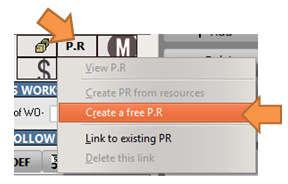
001B (option B) Directly raise the PR (without recording the defect) and let the appropriate department record the defect later on and link this defect to the PR. In this case, select the


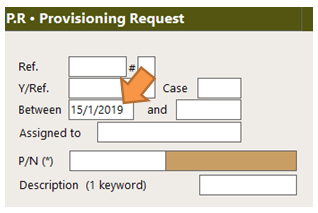
then enter a recent date in the "Between" field to search all PRs recently posted and ensure that your PR is not already present. (Note: you might also want to enter the aircraft registration to shorten the list). Click on the "Search" button to display the results
Review the list to ensure that your PR is not already entered and press the "+" button to record a new PR as appropriate 
002 Enter all fields (mandatory fields are listed on the bottom right error box and this list is updated as you enter new data) - Always enter the concerned A/C identification - Press the "Validate" button as shown:
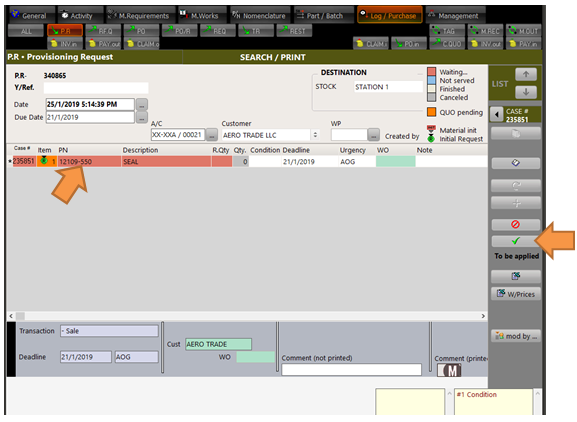
003 Raise a PO
At this stage, your PR is created and AMS offer several options based on your inventory (eg. you might raise an RFQ, transfer the material from another inventory, issue this material directly for your inventory). This procedure shows how to raise a PO:
- Right click on your PR (row item #1) to display the contextual options:
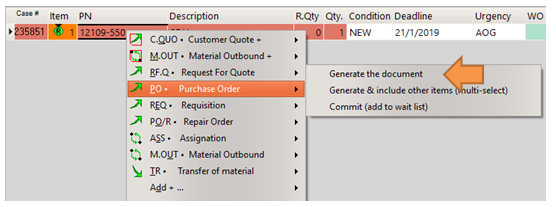
- Select "PO - Purchase Order" / "Generate the document". Your PO is prepared by AMS.
- Click on the  button to display your PO
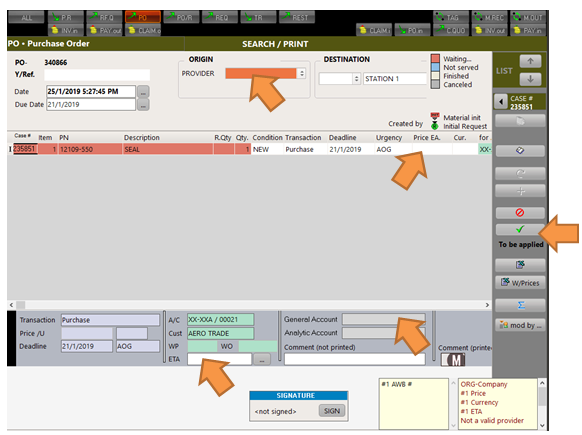
- Enter all fields (mandatory fields are listed on the bottom right error box and this list is updated as you enter new data), then Validate
- If desired, print the PO by pressing the report button: