Recording and mapping External Structural Defects:
Exterior figures are defined primarily by aircraft type. You can record exterior figures of an aircraft type in your General Settings / Maintenance / Aircraft Types
Note: When an aircraft is not exactly the same as the other aircraft of the same type, you can define aircraft specific exterior figures in Activity / Aircraft / Exterior Figures. You need to define exterior figures of the aircraft type before defining aircraft specific figures.
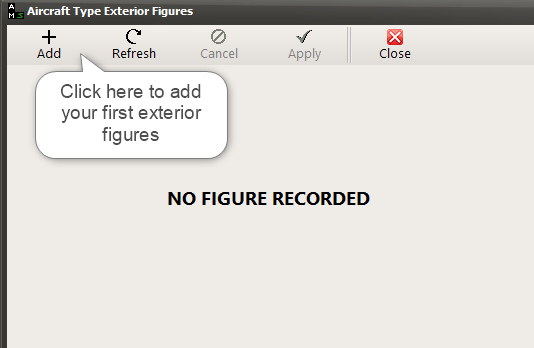
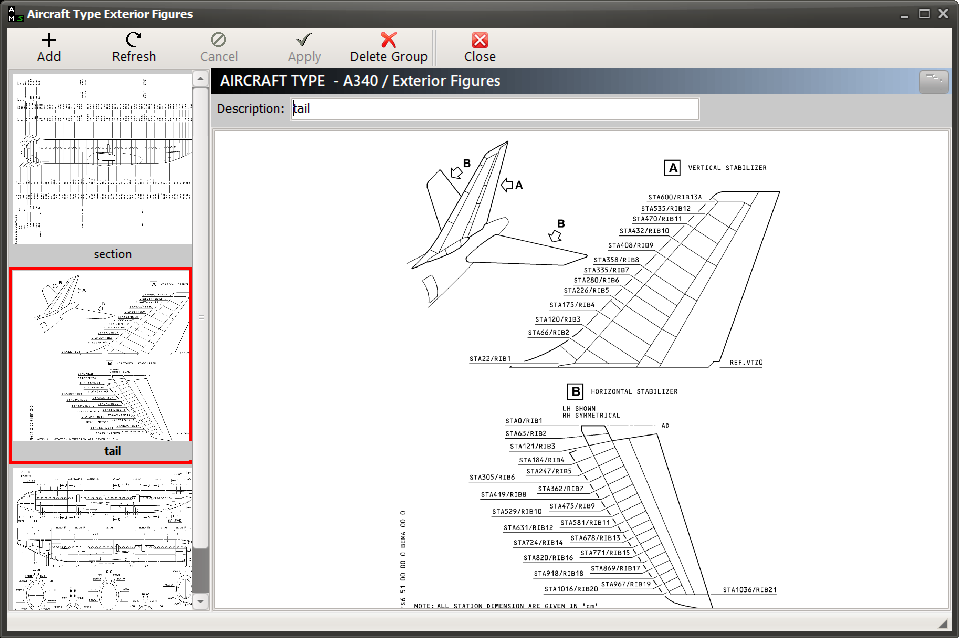
WARNING: Do no rush the upload your exterior figures as it will be complicated and time consuming to change these figures once defects started to be recorded. Consider the following general rules when selecting and uploading your aircraft exterior figures:
•Exterior figures should be defined using the OEM publications (usually the SRM or the GHM)
•Include all exterior surfaces one time only.
•Maintain the number of pictures as low as possible to keep the Dent & Buckle Chart effective and readable. We recommend 4 pictures for small airplanes (LH fuselage / RH fuselage / Underneath View / Top View) and up to 10 for large airplanes (including nacelles / radome / main pax and cargo doors)
Recording and mapping External Structural Defects:
To record the visual location of a structural defect (defect mapping), open the DEFECT window and click on "Defect Mapping" button located in the SDR tab;
The Aircraft Exterior Figure windows opens
Select (click) the appropriate figure on the left thumbnail list and use the desired defect drawing tool (rectangle or circle) to record the defect mapping:
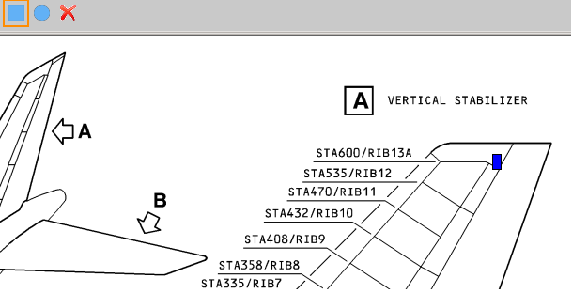
Click on the "Apply" button to validate your modification (this closes the Aircraft Exterior Figure windows)
Click on the "Apply" button on the DEFECT window to record the defect mapping;