When a defect is recorded (NRC created, or equivalent acronym as defined in your general settings), AMS automatically creates a unique defect identifier (Defect ID#). This defect identifier will remain the same no matter what happen to the NRC (deferred / rectified / canceled)
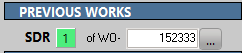
To open the DEFECT window, click on the defect level (the green square in the bellow example):
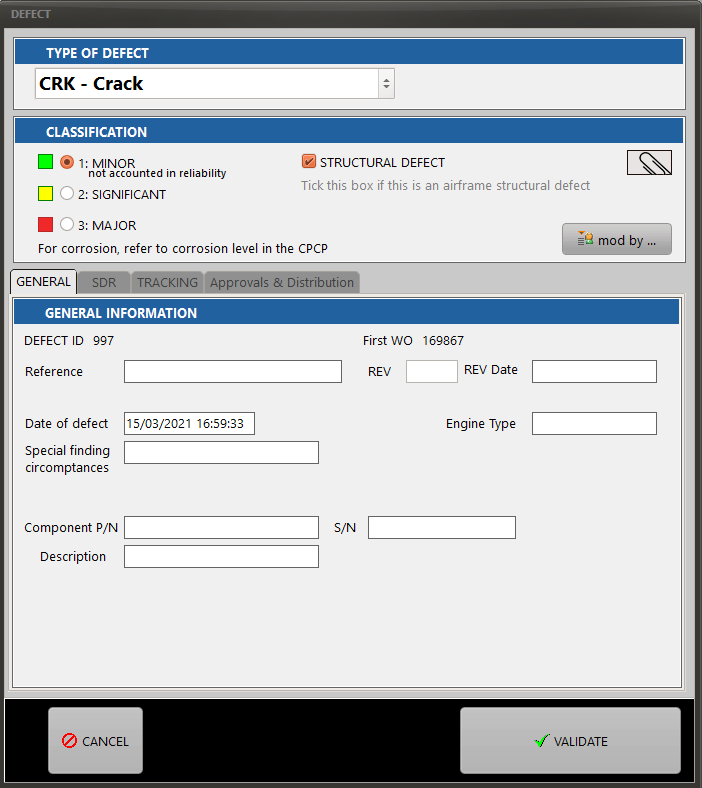
Use the above DEFECT window to record every details of the defect, including the type of defect, its level and much more. If the defect relates to the aircraft structure, make sure the STRUCTURAL DEFECT box is ticked. The information displayed by this window will change depending on the type of defect. The TRACKING tab will only be displayed if the aircraft is in Airworthiness Control mode. When the aircraft is in Maintenance Check mode, the TRACKING tab is not displayed but other fields will be displayed in the GENERAL and SDR tabs to record temporary and permanent repair limits and repetitive inspections when applicable.
For aircraft in Airworthiness Control mode, select the TRACKING tab to display and modify the defect tracking details:
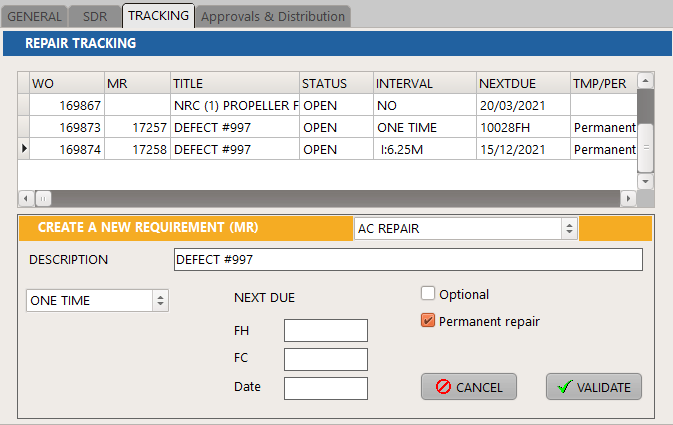
When this window is first displayed, only one WO is listed (the one on top of the list in the above example) which is the NRC used to open the DEFECT window. Add the defect / repair tracking (Maintenance Requirements) related to this structural alteration. Up to 4 tracking can be added per defect: 1 temporary repetitive inspection / 1 temporary one time task / 1 permanent repair repetitive inspection / 1 permanent repair (one time) task
Note 1 : The MR type can be setup in your general settings to only open a status on applicable aircraft, and avoid unwanted N/A statements on all other aircraft.
Note 2: The above window can be used to created different types of MR: The MR type must have the attribute "defect tracking"
The SDR tab can be used to populate the SDR reports using your own Microsoft Word template. Use the sample file located in ...\AMS_Client\XlsTemplates\template SDR.docx to get started and modify is as needed. You will need to activate "Developer" tab in MS Windows in order to edit the "content controls" (https://learn.microsoft.com/en-us/visualstudio/vsto/how-to-show-the-developer-tab-on-the-ribbon?view=vs-2022)