The main data grids (top level grids containing primary search results) include the following advanced functions.
The advanced functions described bellow may be deactivated when the underlying data are not compatible with such feature.
An advanced grid can be recognized by this icon  displayed on the top left corner.
Click on this icon to select the column you want to show / hide
Each column can be ordered in the ascending or descending order. Click on a column title to sort data in ascending order, click again to sort it in descending order. Click on another column to change the sort field.
Right click on the grid to display additional options:
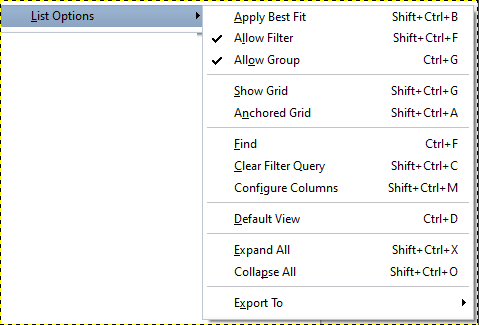
Apply Best Fit: Re size all columns width to match the cell content
Allow Filter: Display an addition icon on the highlighted column title allowing to search data within this column
Allow Group: Display a band on top of the grid which can be used to drag and drop column titles to group data by this column
Show Grid: Draw horizontal lines between records
Anchored Grid: Try to re-size all columns to fit completely inside the visible area of the grid
Find: Display a band on top of the grid allowing to search data by keyword
Clear Filter Query: Cancel any previous search
Configure Columns: Select which column to show / hide
Default View: Delete you local settings for this grid and revert to factory display
Expand All: Open all group nodes (when using data grouping)
Collapse All: Close all group nodes (when using data grouping)
Export to: Export the current grid to various formats (Xml, Excel, csv, html)