When entering the module, press the "Browse Documents" button
Note: you can also click on the "Document" tab if another tab was already used
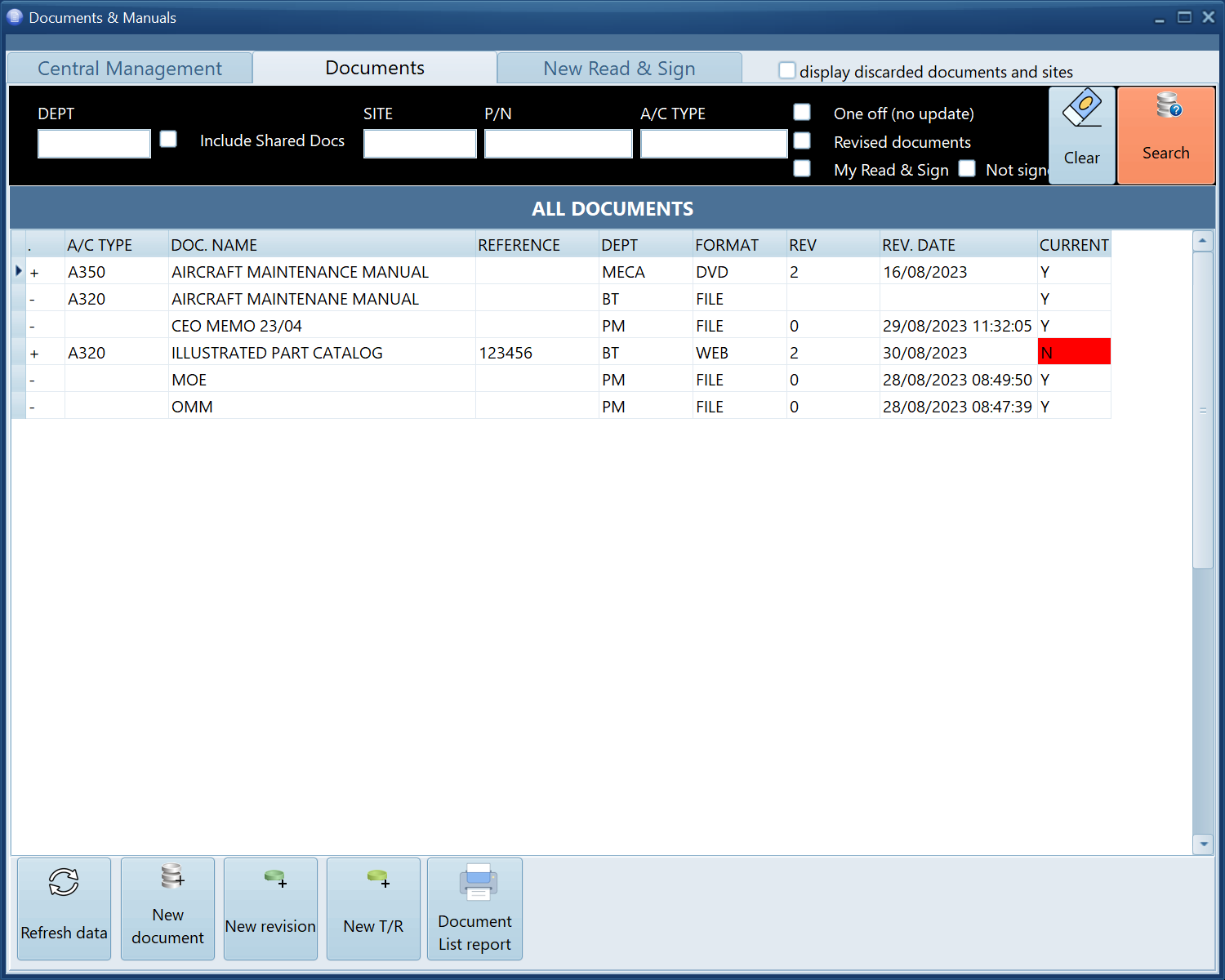
The search criteria will vary and become enabled or disabled base on your user rights
Once you entered your search criteria, press the "Search" button to display the matching documents
You can right click on any document or use the bottom options to:
- Open the document
- View the document details
- Receive a new revision or temporary revision (TR)
A document which is no longer up to date is highlighted by its columns "CURRENT" showing "N" on a red background
The document details is made of 3 sections:
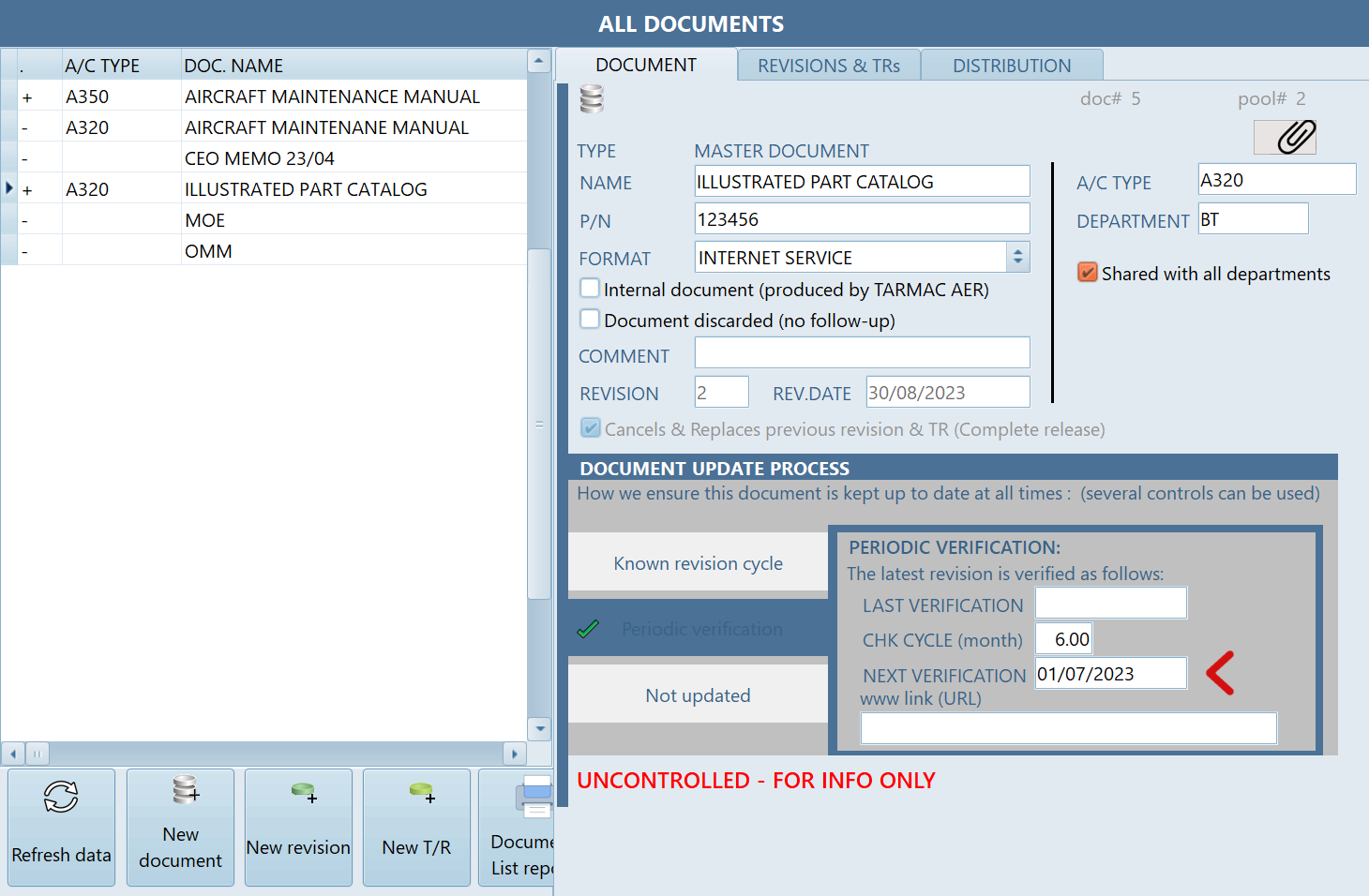
- The [Document] section contains all the above details, of which
- ATTACH document: The first document of this list will open when a user wants to browse this document
- DEPARTMENT: Only people from this department will have access to this document, unless the "Shared" option is ticked
- DOCUMENT UPDATE PROCESS: At least one of these 3 control process must be used (there is known revision cycle, there is no cycle but we verify periodically that we are up to date, there is no update and the document remains effective until canceled)
- REVISIONS & TRs
This section shows the history of all revision and TR (Temporary Revisions) received
- DISTRIBUTION
This section show the current and past distribution to all sites and all individuals (in the case of a Read & Sign)