To record a new Read & Sign document:
When entering the module, press the "New read & Sign" button
Note: you can also click on the "New Read & Sign" tab if another tab was already used.
Then follow the 3 steps on the screen:
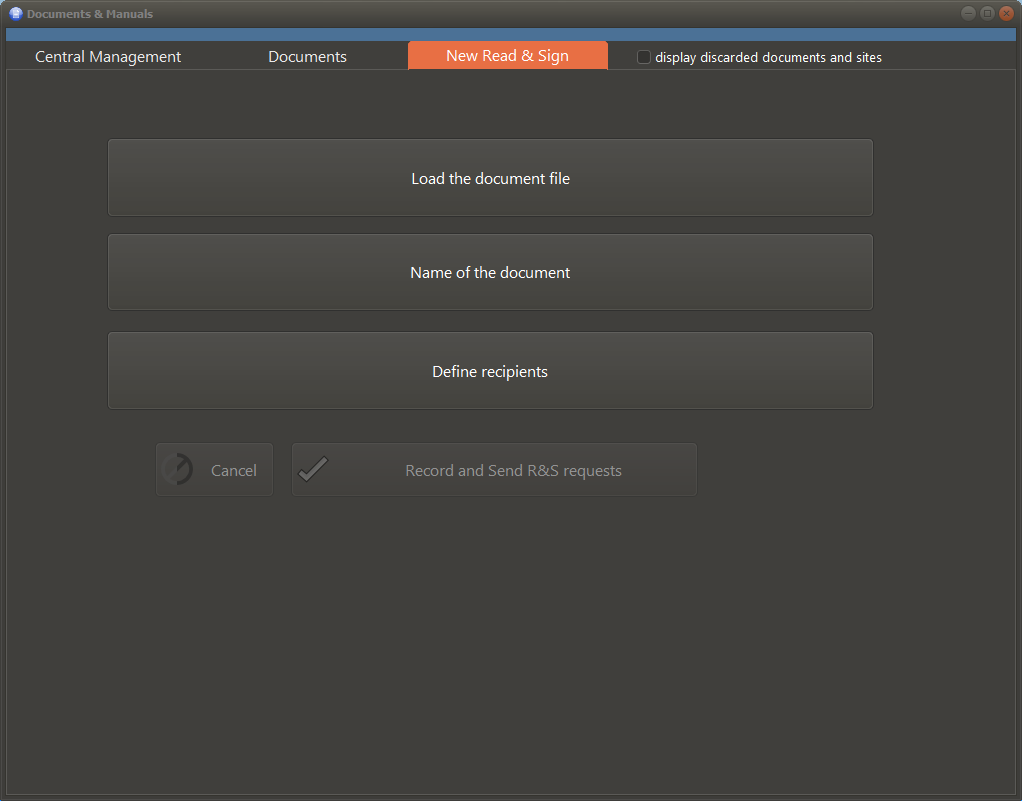
- Load the document: A file explorer windows prompts you to select the file (pdf)
- Name the document: Give it a meaningful name that everyone will understand easily
- Define recipients: by selecting a list of departments or a list of users
Once completed, press the "Record and Send R&S requests".
A notification will be sent to each recipient. As with any AMS notification, an email will also be sent to each recipient.
When a recipient user logs into AMS, he/she will see the notification on the welcome screen:

The user can double click on this notification to open the document
He/She then right click and select "Open" to read the document
and then select "Sign (acknowledge reading)"
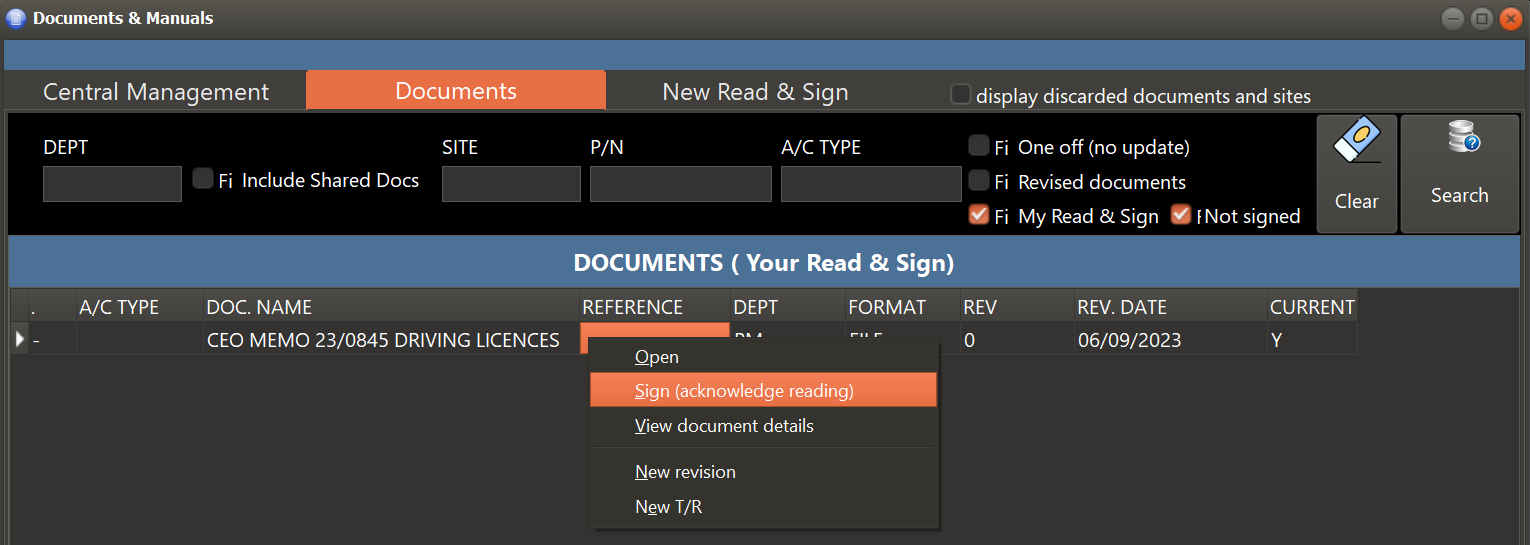
Note: A user signature is certified by a ash key and the authenticity can be verified at all times (by clicking on the button "Verify signature" on the receipt)