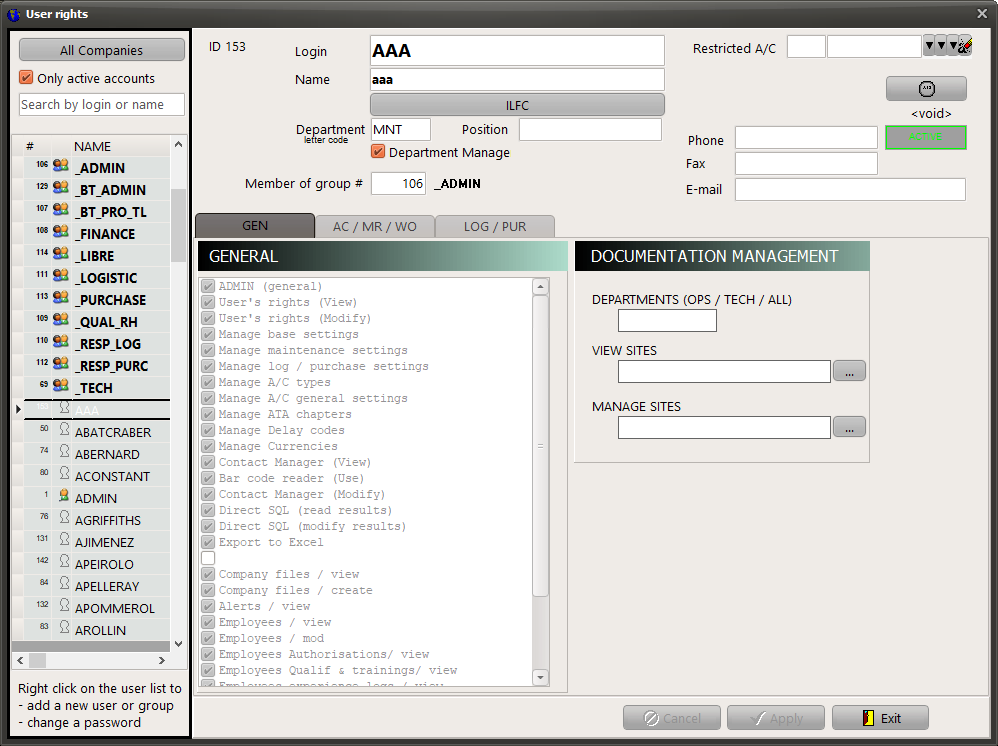
This window is used to defines the rights and privileges of all users. User Rights can be addressed user by user or using groups of users (you can mix the two possibilities). Once a Group is created, you can join an individual to this group by entering the group ID (#) in the "Member of group #" field.
To add a group, right click on the user list (left pane) and select "add a group", then enter the group rights and validate your changes.
To add a user, right click on the user list (left pane) and select "add a user", then enter the user's rights, contacts and validate your changes. The new user account is displayed on the User List. Right click on the newly created user and select "Change password" to set an initial password.
IMPORTANT: Use department code (not exceeding 4 characters) rather than full text department descriptions (eg. MNT instead of MAINTENANCE). Refer to Data flow & Department approvals for more details about the departmental approval functions.
To add a user to a group, select this user in the user list (left pane) and enter the Group ID # in the field "Member of group #"
Note that when a user is member of a group, all user's rights are disabled and cannot be modified (the group's rights are displayed)
To change a user's password, right click on the concerned user in the left list and select "change password" (refer to Security / Change password)
Special fields:
Most of the User Rights are self explanatory (the description fully explains what the user right is controlling). If a user is trying to use a function without having the necessary user right(s), AMS raises an error message clearly showing what user right is necessary "Access to this function was denied - Contact your administrator if you need to enable the following right: <Full user right description>".
User Rights having special meaning or more complex interpretations are listed bellow:
GENERAL
DOC / Create document or revision:
if checked, the user can create new manuals, documents or revisions in the "Document & Manual" module, only for the authorized departments (see the right "DOCUMENTS / DEPARTMENT" below) and only for the authorized sites (see the right "DOCUMENTS / MANAGE SITES")
DOC / Create new site:
if checked, the user can create a new documentation site. When a user create a new site, he automatically inherits the "VIEW SITE" & "MANAGE SITE" rights on this site.
DOCUMENTS / DEPARTMENTS :
TECH if the user is authorized to open the "Document & Manual" module for the technical department only.
OPS if the user is authorized to open the "Document & Manual" module for the flight operation department only.
ALL is the user is authorized to open the "Document & Manual" module for the technical department and the flight operation department.
DOCUMENTS / VIEW SITES
List of sites (list of site IDs separated by plus signs) the user is authorized to read. Click on the "..." button to change the value of this field
DOCUMENTS / MANAGE SITES
List of sites (list of site IDs separated by plus signs) the user is authorized to modify. Click on the "..." button to change the value of this field
AC/MR/WO
Restrict WO view to Ops Tech:
Can only view WOs visible on the Operational Technical Status (having Operation (OPS) or Commercial (COM) impact, or launched for execution by an MRO)
Modify Non-Protocol WO (only):
Can only modify WOs when there is no link to a MR (Maintenance Requirement)
Engineering Supervisor
Can modify and authorize PRs (Provisioning Requests), provided the General Setting "PR raised using the bar-code module must be authorized by Engineering Supervisor" is selected
Can use the "Engineering Supervisor" functions from a Work-Package (Authorize PRs / Review Defects Review 2)
MRO Team Leader
Can modify the fields associated with work completion (Work performed, Review 2, Manual Status, Date of completion).
Can modify the maintenance instructions in case of a NRC
Can tick the WO C/W (Complied With) box if the General Settings "MRO Team Leader can record compliance" is selected.
If your license includes the "Multi-Company" capabilities, read the Multi Companies section