Raise an RFQ |
|
|---|---|
1 |
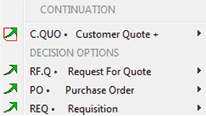
A RFQ can be generated from an existing Provisioning Request From the Select "RF.Q . Request for Quote", then "Generate the document":
|
2 |
The RF.Q sub-module is highlighted to show that it is holding changes waiting to be validated:
Click on it
Important: You can repeat the same procedure from step 1 with other row items to be added to the same RFQ
|
3 |
The RF.Q is ready to be validated. Review the preset fields entries and validate
|
4 |
At this stage, the RFQ exists but we did not send it to any supplier yet Double click on the RFQ row item to open the RFQ Manager |
|
|
5 |
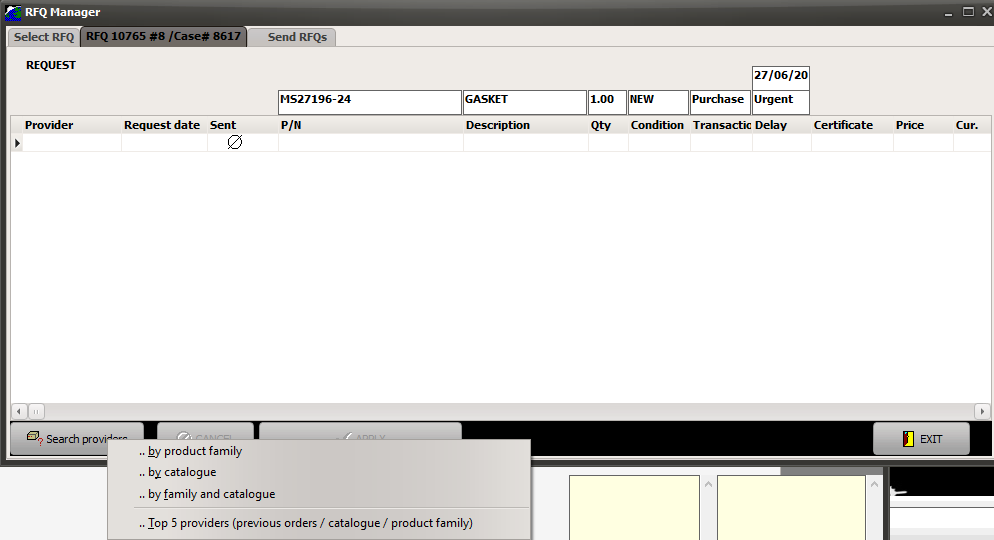
The RFQ Manager window opens and shows the list of interrogated providers (at this stage: none):
You can enter a new Provider by entering his name (drop down list) in the "Provider" column, or you can request AMS to propose adequate providers by clicking on the "Search Providers" button and select one of the option (select the option "Top 5 providers" to let AMS review the history of purchases)
|
6 |
Optional: At this stage, the RFQ is already raised and the iCare AMS Server will send the RFQ by email using the email addresses as set in the Contact manager. Once the RFQ will be sent out, the "Sent" column will show the sending method (Auto Html). The iCare AMS Server will copy you of this email.
If you do not want to wait for the iCare AMS Server to send this RFQ, you can do it using your email software (Outlook, Thunderbird or any other window based email client). Proceed as follows: Select the "Send RFQs" Tab.
Then choose how to send all RFQs
or only the RFQs you raised:
|