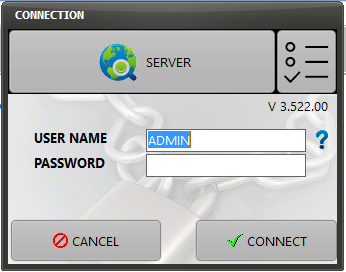
Double click on the iCare AMS shortcut located on the computer desktop.

Login:
|
Enter the User Name and Password assigned by your iCare AMS administrator
Then click on the CONNECT button |
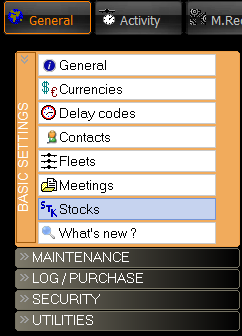
On the main page, select “Stocks” in the BASIC SETTINGS menu
•Then select the stock to be valuated in the list of stocks and click on the “Stock Valuation” button
•If you want to valuate this stock as of today, let the “Last value” check box checked (default). Otherwise, uncheck this box and enter the desired date of valuation
Note 1: Requesting the valuation of a stock on a specific date may take several minutes as iCare AMS will review the history of each part in order to determine where the part was located and what its condition was on this specific date.
Note 2: When requesting a stock to be valuated on the first day of the month, iCare AMS will record this valuation as a new plot in the STOCK GRAPHICAL VALUE tab.
Then click on the Calculate button

•A progress bar will be displayed at the top this window to show you the current progression status.
When the valuation is done, iCare AMS displays the list of all parts together with an individual value (Acquisition Cost & Market Value). In the case a part was not located in this stock or was not self-owned on the requested date, a comment explaining the reason of the exclusion is displayed and the part value is excluded from the total amount.
The total value shown at the bottom of this window is related to all serviceable and unserviceable parts. You can click on the MS Excel button to extract this inventory to MS Excel
In order to only value the serviceable or only the unserviceable parts, select the desired condition as per the bellow example:
