- Go to the "Central Management" tab and click "View Documents" to display the list of documents currently recorded, then click on "New Document"


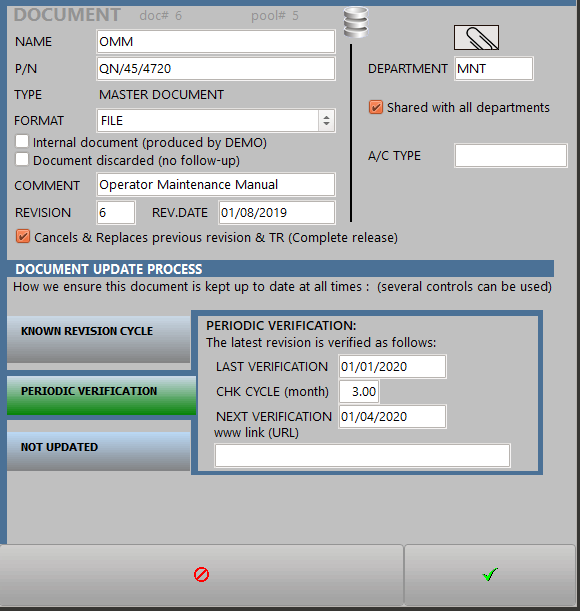
- Fill all fields as per the following example:
REVISIONS
2 options are available:
1/ The REVISION and REV.DATE are recorded directly on the master document as shown in the above example. This option will be preferred when you have no intention to record each revision or to maintain a record of copy distribution for each revision. This option will be typically used to record letters, memo, messages. Note that you still can record a superseding revision or this document if and when it will be revised, as per the second option.
2/ If this is a document which will be revised and you want to keep track of each revision and each revision distribution, you do not have the enter any value in the fields REVISION and REV.DATE as this will be updated when you will record revisions.
DOCUMENT UPDATE PROCESS
Each document must be monitored to ensure the latest revision is used. At least one document update process must be selected before you can validate the document.
- After validation of the above Master Document, click on "New Revision" and fill the form as shown in the below example:

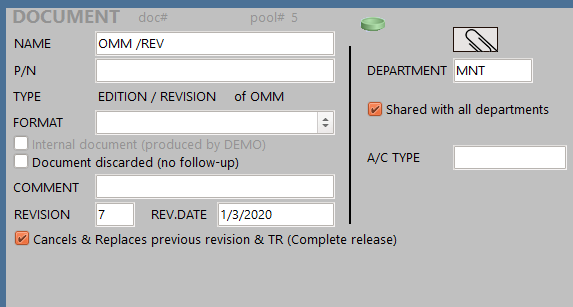
Once validated, the REVISION and REV.DATE field will overwrite the same fields on the Master Document