Bringing people from different parts of the organization together for meetings can be a time consuming and sometimes not really efficient. The Files & Meetings sub-module is a tool to manage meetings and efficiently organize the answers and corrective actions, even without having physical meetings.
You can use this module to organize the usual meetings of the company and assign the answers / corrective actions to each department and employee.
To start with this module, you must set the different names of meetings in the general settings / Files & Meetings
Then, open the Files & Meetings sub-module:
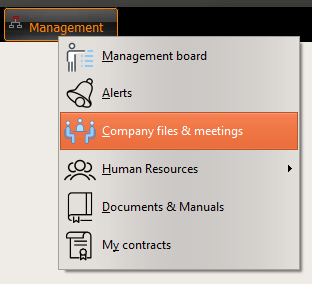
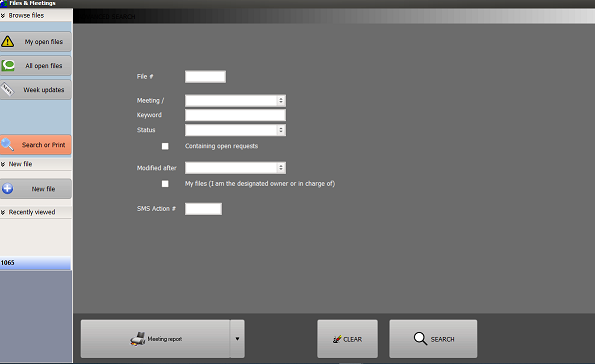
1/ Add a new meeting/file
To create a new file select the 'NEW FILE' button. The following window opens:
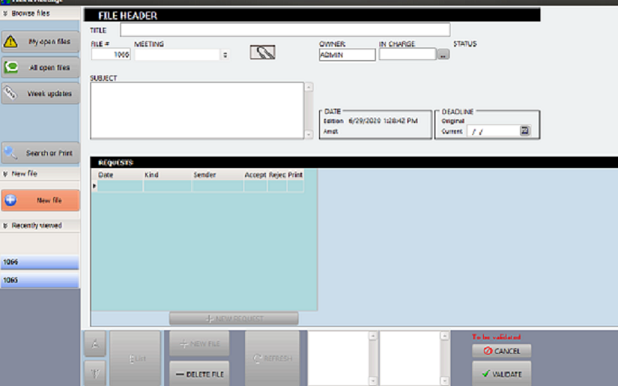
Fill all fields like in the above example:
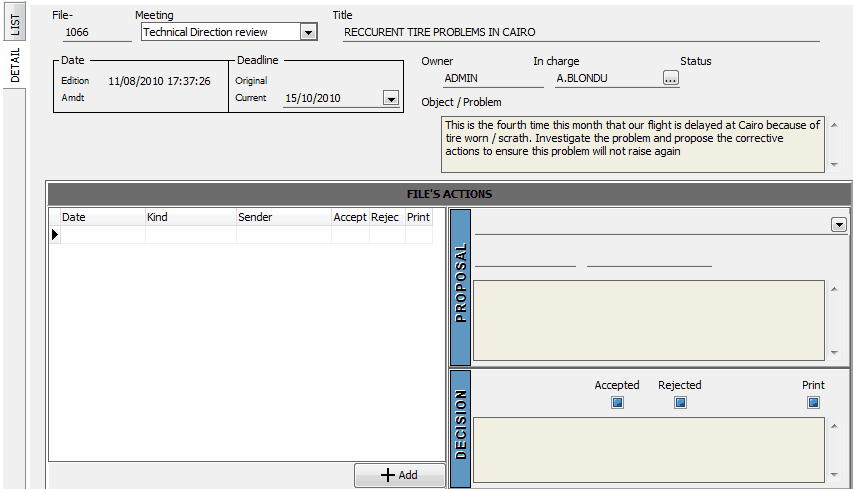
- Meeting: name of the concerned meeting
- Title: a description pertinent to this meeting item
- Current / Deadline: the deadline currently assigned to this item (this deadline could be modified thereafter but the modification will be tacked: this current deadline will then become the original deadline)
- Owner (filled automatically): this is the person who raised the item and who makes the decisions to accept or reject the proposed answers (he is also the one who created this item under AMS)
- In Charge: The name of the person in charge of getting answers.
- Object / Problem: the full description of the problem / object.
To select the person in charge, click on the "..." button to display this selection window:
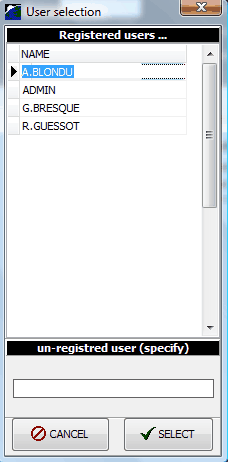
Registered users are the ones having an account in AMS. If the person in charge is selected in this list, he will automatically receive a message in the General screen of AMS. If the person in charge is not an AMS user, then his/her full name is required in the "un-registered user" section; in that case, the answers proposed by this person will have to be copied in AMS by another person.
Press the "Validate" button when finished. The window is now displayed with the associated file's actions:
2/ Making proposals
Anyone can post answers / proposals to the owner of the meeting item (see note 1 about access rights). To do so:
- Press the "+Add" button
- Select the type of your proposal:
- info: post an information about this item
- re-opening request: if the item is closed and you have new information to re-open it
- closing request: you consider that your answer is conclusive and the file should be considered as closed
- stand-by request: you suggest to freeze this file because some third party information are required
- Enter the full text of your proposal / answer
- Press the "Validate" button
3/ Acceptance / rejection
The owner of a meeting item is the only one you can accept or reject an answer. A special selection filter is provided on the top band to display all items owned or assigned to the logged user: check the box "Where I am designated owner or in charge of" and "Filter".
You can then review all answers that the other users posted to your items and accept or reject them by checking the Accepted or Rejected check boxes.
If the Print check box is checked, the concerned item will be displayed on the report of this meeting (not displayed otherwise).
4/ Physical meeting
At time of the physical meeting, the meeting report can be printed usual report button located on the top band. This report includes all items of your meeting together with all answers (if Print is checked).
Note 1: There are currently no specific rights to view the meeting items (anyone can read it). The reason is essentially because the Files & Meetings sub-module is widely used to communicate about the meetings rather than to restrict the access. If you have specific needs to restrict the reading access for some strategic or confidential meetings, do not hesitate to ask and we will add this option.