The first part of the M.Works Module is a list of search parameters (explained below).
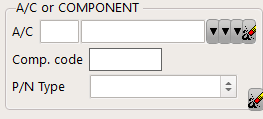
•A/C: Select the concerned aircraft registration (1), a fleet (2), or an operator (3) associated to the WO.
(1)
(2)
(3)
•Comp.bar code: Enter the Component bar code in this field to display the WO associated with it.
•P/N Type: Select a part type associated to the WO.
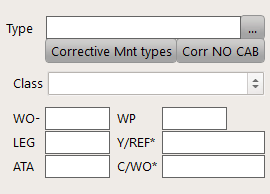
•MR Type (Maintenance Requirement Type) (Component, Maintenance Program, AD, SB...)
click  to display the list or MR types, then check the MR types you are searching for and press "OK" to display all associated WOs
•MR: enter a MR number to display all WO related to it
•Class : Type of WO category. (Scheduled, Additional, rectification, etc. )
•Reference of a Work Order.
Enter the WO number you want to display
•Work-Pack: (Work-Package)
A Work-Package is a collection of WOs (Work Orders) forming a complete maintenance visit.
Enter a WP number to display its WO content.
•Y/REF: A secondary reference to the WO.
•C/WO: Customer Work order reference.
•LEG: LEG is an internal ID (identifier number) pointing to the associated flight leg. This ID number is automatically generated by AMS during the record of aircraft trips.
•ATA: Specify the ATA chapter to be displayed. You can enter 2 digits or more (eg: enter "23" to display all WO related to "Communication" or "2340" to display all WO related to "Communication/ interphone").
By default, when iCare AMS is setup for an Airline / Operator, this field will show the task due list of the next 30 days as per this screen shot:
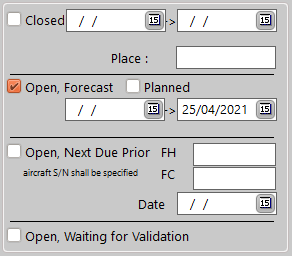
•Closed : Check this box and enter the date range (From / To) to display WO closed during this period (refer to Dates inputs). Note that "Closed" does not mean "performed" as a WO differed during the selected period will also be listed.
•Open, due within: Check this box and enter the date range to display the Open WO falling due during this period. Note that AMS will use the forecast date to determine if a WO having a non-calendar limit (flight hours / cycles) falls due during the selected period.
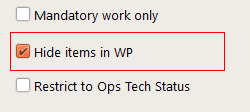
•not included in WP/ Hide items in WP: Check this box to display only the WOs which are not yet included into a Work-Package.
Work-Packages will be displayed but not their content.
•Airworthy items only/ Mandatory work only: Check this box to ignore optional WOs
•Restrict to Ops Tech Status:
•Installed Components: click on this icon to display only installed components.
•Un-installed comp.: click on this icon to display only un-installed components.
•In order to display WOs falling due within a specified number of hours or cycles, use the "Open, next Due prior" section:
•Work related to Amendments: The list will show only WOs related to MR in amendment ( Using amendments )

•Other fields: This section does not contain all actual fields available in iCare AMS. Below is an overview of other fields:
 displays works with the specified print flag
 shows the works modified after a date & hour
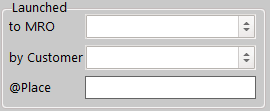 shows the Works ordered by a certain customer, or launched to a certain provider
 to show MAREPS or PIREPS
 shows Works which requires the specified access
 shows the works which has the specified downtime
•Opportunity: Line/Base Maintenance
•Criticality: Simple/Specific/Critical
•Phase: Current phase of the WO.
•the two green arrows can be used to recall the previous search (left arrow) and the next search (right arrow)
•Click on this arrow  to browse the list
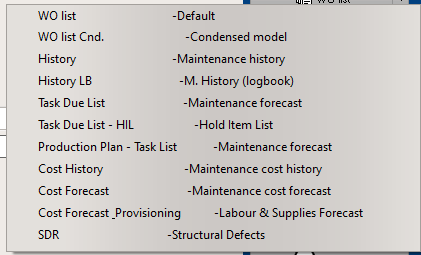
Various reports are available (not all the available reports are exposed in this manual):
- "WO list - Default", print a list of all WO
- "WO list Cnd - Condensed model", print a list of all WO in a condensed format
- "History", detailed Maintenance History report (only available for "Closed" WOs) .
- "History LB - M. history (logbook)"detailed Maintenance History report in Log Book format (only available for "Closed" WOs)
- "M.Forecast", Maintenance Forecast report (only available for "Open" WOs)
•"Clear" button: Erase the current search fields to start a new search
•"Search" button: Execute this search and display the list of WOs
Refer also to: Filtering strings
Additionally, Use the Quick Snag Button to create a new WO.