Like most of the main modules in AMS, it starts with the selection of the MRs you would like to work on. This search filter, located at the top of the window, let the user define nearly all kind of requests. The search criteria shall be defined as per your request, most of these criteria remaining blank / unset.
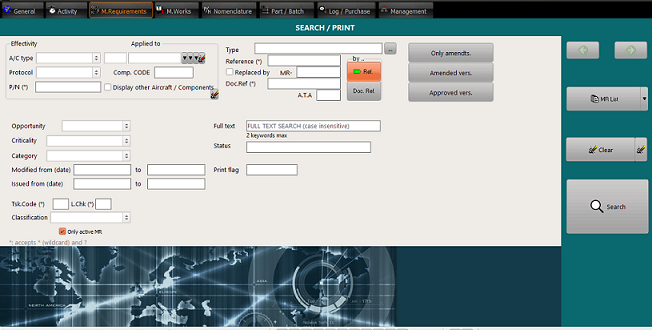
The search criteria are:
- Effectivity matching an aircraft type, a protocol, a P/N (see filtering strings)
- Applied to a specified aircraft, fleet, to the aircraft operated by a specified customer or to a component (by component's code); note that in this context "Applied to" means that a status exists for the specified aircraft or component.
- Display other aircraft/components: Controls how the other aircraft or components matching this condition should be listed or not.
- COMP code: Search an MR based on component codes.
- P/N : Search an MR based on Part number.
- Type: MR types as listed above (one or several types can be selected at once)
- Reference: MR reference (see filtering strings)
- MR: The identifier (integer) of the MR, or the Id of the replacing MR if "Replaced by" is checked
- Doc.Ref: Reference document (see filtering strings)
- Opportunity: Line Maintenance, Base Maintenance,
- Critcality: Simple, specific, critical.
- Category: MR category.
- Modified from/to a specified date
- Issued from/to a specified date
- R.string/Full Text is a field used on each MR to create customized and modifiable selections (see R.string)
- Tsk.Code: Task code
- L. Chk: Letter Check
- Classification: search MRs classified as repetitive, one time action, replaced, etc. See MR classifications for details
- Print Flag: Label displayed on the associated WO's to warn about critical works like CMR, ALI, CDCCL, etc
- Status of the associated WOs (see the Status)
- Only active MRs (not being classified as replaced or cancellation)
- Display the results by Ref (by reference) or by Doc.Ref (by document of reference). See Reversing the MRs by doc.ref.
Once the criteria are set, click on the Search button to display the list of matching results.
or use the print button to obtain a pdf report (available reports can be selected using the down arrow)
Then, double click on a particular MR to display its full details.